News & Blog
How to Clear temporary files to get instant speed in your computer
The Mechanics of Temporary Files
When you use a desktop or laptop, the operating system (like Windows) and your applications constantly create temporary files. These act as a digital scratchpad.
Browsers save images and scripts so websites load faster next time.
Word processors create auto-save backups in case of a crash.
System updates download large installation packages that are left behind after the update is complete.
Usually, software is supposed to delete these files when it closes, but crashes, interrupted processes, or poorly coded software often leave them orphaned in your C: drive.
How They Impact Performance
The accumulation of these files slows down a PC primarily through Storage Starvation, which impacts the system in two main ways:
Virtual Memory (Pagefile) Restriction: Your computer uses RAM for active tasks. When RAM gets full, Windows uses a hidden file on your
C:drive called the "Pagefile" as overflow memory. If temporary files consume so much space that yourC:drive is in the red (typically under 10% to 15% free space left), Windows cannot expand the Pagefile. The system begins to bottleneck, resulting in freezing, stuttering, and severe lag.File System Overload: Hard drives (and to a lesser extent, SSDs) rely on an index to find files. Having hundreds of thousands of tiny, useless temporary files forces the drive to work harder when searching for the data you actually need.
The "Instant Speed" Reality
You will usually only get an instant, noticeable speed boost from deleting temporary files if your C: drive was critically full. By wiping out gigabytes of junk, you instantly give the operating system enough room to breathe and manage its Virtual Memory properly again.
If your drive still had plenty of space, clearing temp files will just reclaim storage capacity without providing a massive change in day-to-day speed.
How to Safely Clear Temporary Files (The Solution)
If you want to perform this maintenance on a Windows machine, here are the most effective methods:
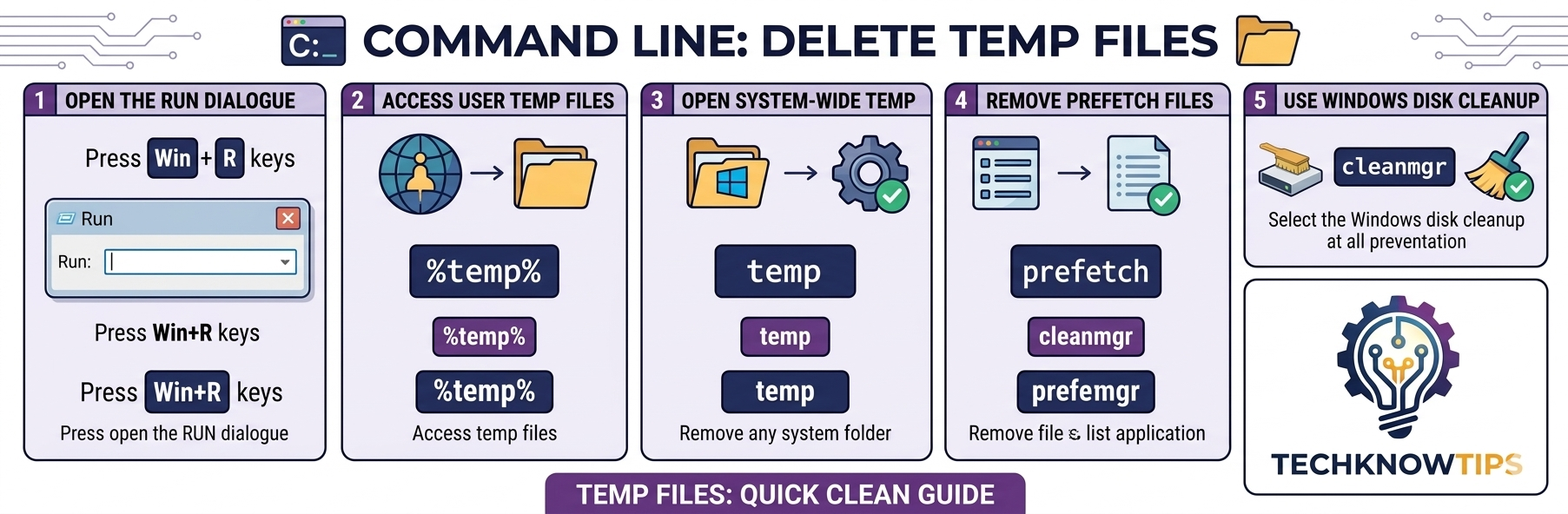
Method 1: The Manual Run Command
Press the Windows Key + R to open the Run dialog.
Type
%temp%and press Enter. This opens the user-level temporary folder.Press Ctrl + A to select everything, then press Delete.
(Note: Some files will say they are in use. Just check "Do this for all current items" and click Skip).
Repeat the process, but this time type
tempin the Run dialog to clear the system-level temporary folder.
Method 2: Windows Built-in Tools (Recommended) Instead of hunting down files manually, modern operating systems have safe, automated tools:
Storage Sense: Go to Settings > System > Storage and turn on Storage Sense. It will automatically clear out temporary files and empty your recycle bin on a regular schedule.
Disk Cleanup: Search for "Disk Cleanup" in the start menu, select your
C:drive, and click Clean up system files. This is highly effective for safely removing massive, outdated Windows Update files.